Overview
This section explains how to update the SysWESM database when the
Historical Load Step 6 identifies
errors in the Historical Database Error Report (HistDBErr.csv).
- Required Inputs
- Step-by-step procedure
- Exercise
Updating the SysWESM Database
The Historical Database Error file (HistDBErr.csv) is generated in the scenario folder when
you run a historical load. It provides a summary of system errors including capacity upgrades,
missing units in the database, out-of-merit no bid, out-of-merit outage, and link outage. This
file can be viewed in Apollo by right-clicking a scenario or by navigating directly to the
historical scenario folder.
An up-to-date system database is crucial for accurate Short-Term Forecasting, as the WESM constantly changes (for example, new units being commissioned or existing unit capacity upgrades).
Prerequisites
- Completed Historical Load run
HistDBErr.csvgenerated in the scenario folder- For the CSV method:
Units.csv,Sites.csv, and/orStors.csvtemplate files prepared - For the Database Edit Utility method: access to the
SysWESMXXX.dbdatabase
Historical Database Errors
The Historical Database Error Report lists five categories of error:
-
Capacity Upgrade — The capacity of an existing unit has changed. Suite automatically corrects this during the historical load process. To verify, rerun the historical load after the update.
-
missing in db — Units, sites, or storage entries exist in the IEMOP data but are not yet in the SysWESM database. Add these using either the CSV method or the Database Edit Utility (see below).
-
Out-of-Merit No Bid — Units with missing bids. These are included in backcast simulations using the generated bid file
OM_XXX.bidfrom the historical load process. -
Out-of-Merit Outage — Unit outage events. These are included in backcast simulations using the generated event file
Ev_XXX.csvfrom the historical load process. -
Line Outage — Line outage events. These are also captured in
Ev_XXX.csvfrom the historical load process.
Before proceeding to Backcasting, ensure that the historical load has been completed and that the only remaining Historical Database Errors are Out-of-Merit No Bid, Out-of-Merit Outage, and/or Line Outage. Capacity Upgrade and missing-in-db errors must be resolved first.
Step-by-Step Guide
- Phase 1: Using CSV Files
- Phase 2: Using Database Edit Utility
Prepare CSV Files
Prepare the .csv files using the provided Units.csv, Sites.csv, and Stors.csv
files as base templates.
At minimum, include the necessary details such as IDs, capacity, fuel type, and operations. Make sure that all details are filled out correctly.
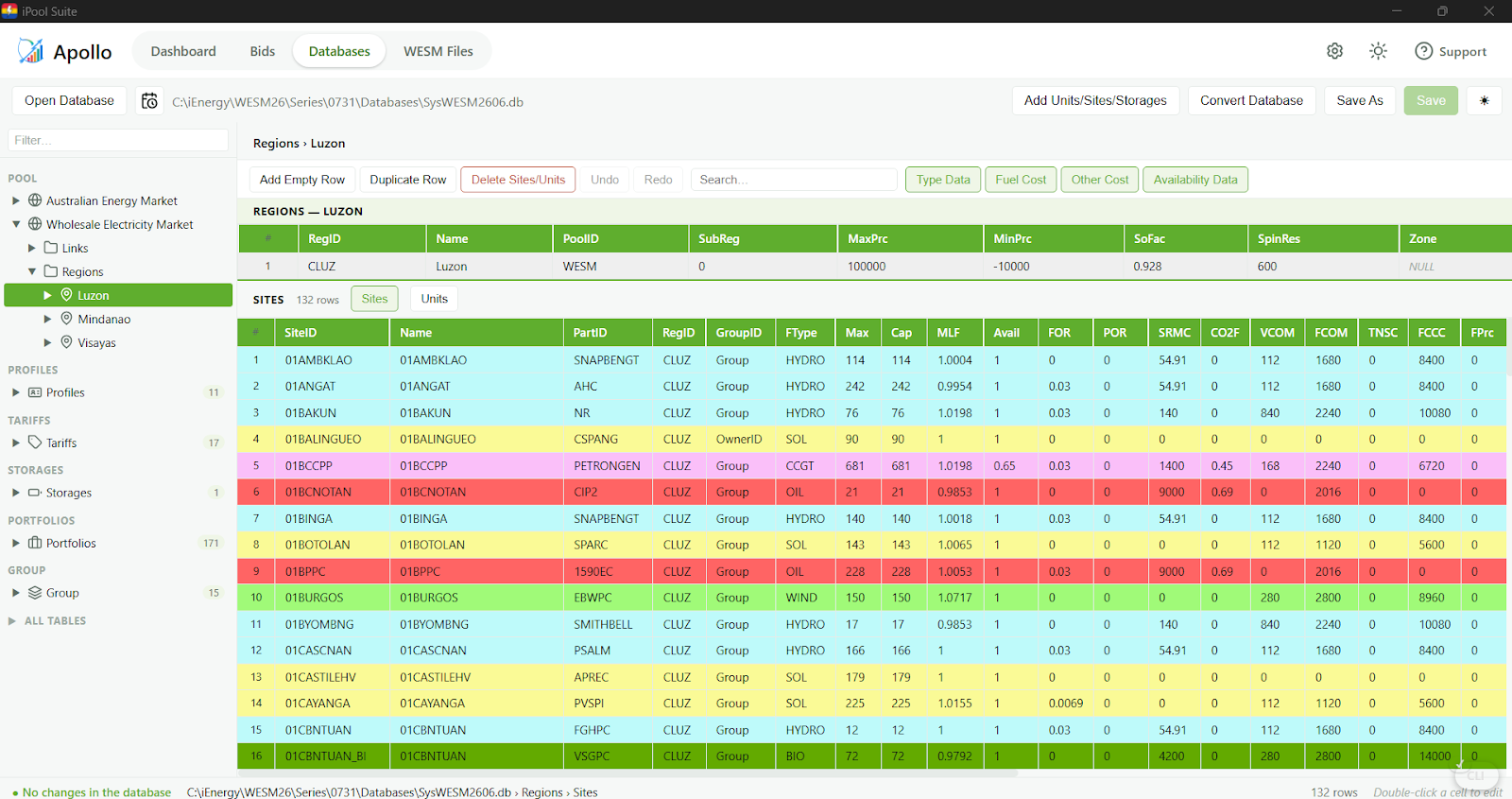
Open the System Database
Click Open Database and select the system database file: SysWESMXXX.db
Add Units, Sites, or Storages
Click any item from the tree view, then click Add Units/Sites/Storages.
Select Input Files and Update
Select the correct input file(s) and output path(s), then click Update Database.
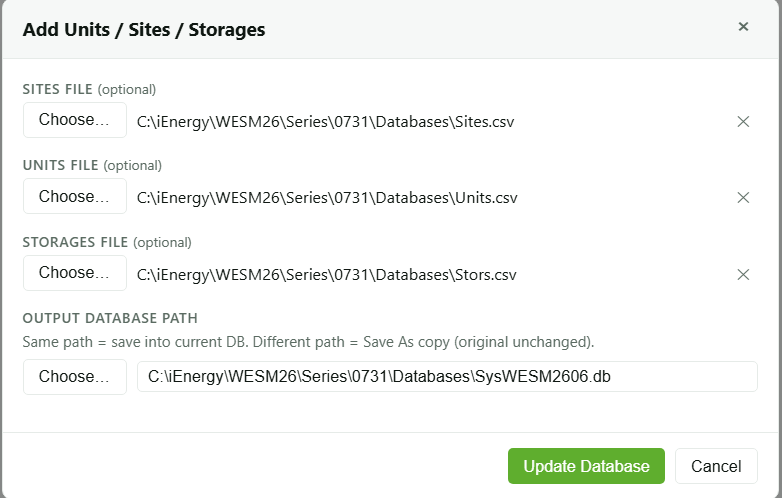
Confirm the Update
A confirmation message will appear. Before proceeding, make sure that the details for
the new units, sites, and/or storages in the .csv files are correct.
Review the Updated Fields
After the update is complete, review the updated fields in the Database Editor to confirm that all details were added correctly.
Primary CSV Files
See each tab to learn more about the primary CSV files used when adding entries via the CSV method.
- Storages
- Sites
- Units
Storages.csv
The Storages.csv file defines the physical limits of the energy reservoir. It sets the maximum and minimum energy capacity (MWh) and the PcBeg (Beginning %), which determines the initial state of charge at the start of the simulation.
For Battery Energy Storage Systems (BESS), PcBeg is typically set to 50% to provide balanced charging and discharging flexibility.
The table below describes the parameters for storage assets (e.g., STO_CLUZ) as defined in the Storages.csv data structure.
| Item | Description | Example Value |
|---|---|---|
| StorageID | Unique identifier of the storage. | STO_CLUZ (user-defined) |
| Region | Region associated with the storage. | CLUZ, CVIS, or CMIN |
| StorageType | Classification of the storage. | BAT, HYDRO, GAS |
| InFlow | Rate of inflow into the storage (for hydro or similar technologies). | 0 (for BESS) |
| Max Cap (MWh) | Maximum energy capacity of the storage (MWh). | 4000 (user-defined) |
| Min Cap (MWh) | Minimum allowable energy level (MWh). | 1 (user-defined) |
| Begin Level (%) | Initial state of charge at the start of the simulation. | 50 (user-defined) |
| MoF0 – MoF12 | Monthly inflow values (if applicable). | 0 (for BESS) |
| Upstream StorageID | Upstream storage ID (if applicable). | (No input required for BESS) |
| Upstream Factor | Upstream factor. | 1 |
| Inflow Time Hrs | Inflow time (hours). | 0 (for BESS) |
Exercise
Give it a try and do this exercise:
Step 1 of 3
Review the Historical Database Error Report